
In this guide
Installation · First project · Providers · Layouts · Files and changes · Localhost · Recovery · Security · Troubleshooting · Limitations
These screenshots show Babel Mux 1.0.0 running on Windows, with two demo folders and Shell terminals. The application is shown in Spanish; available providers depend on each computer’s installed tools. Click an image to enlarge it, or visit the tool gallery.
Installation
| Download | Purpose |
|---|---|
Babel-1.0.0-instalador.exe |
Install Babel for your Windows user and choose its directory in the installer |
This release targets Windows x64. Running the binary does not require installing Node.js, Electron or Visual Studio. Development tools and CLI providers may have their own requirements.
- Go to the download page and download
Babel-1.0.0-instalador.exe. - Also download SHA256SUMS.txt. In PowerShell, from your download directory, run:
Get-FileHash -Algorithm SHA256 -LiteralPath '.\Babel-1.0.0-instalador.exe'Compare the result with the matching line in SHA256SUMS.txt; uppercase and lowercase letters represent the same hash.
- Read the license agreement. Run the verified installer and follow the setup wizard.
This release has no digital signature. Windows may display an unknown publisher warning. Check the source and checksum before deciding to continue. A checksum identifies the download; it is not a security certificate.
Your first project
- Open Babel Mux and add a project tab by choosing a working folder. Start with a test folder or a repository whose changes are saved.
- Open a terminal panel and choose a shell or an installed provider.
- Check that the panel’s working directory matches your project before sending instructions.
- Add another panel for another agent or task. Give each agent clear instructions about which files it may modify.
- Use the file explorer and changes view to review results before accepting, committing or publishing them.
In Babel, a tab is a project, its panels are terminals, and a session is a live terminal process. Changing layouts does not close a session.
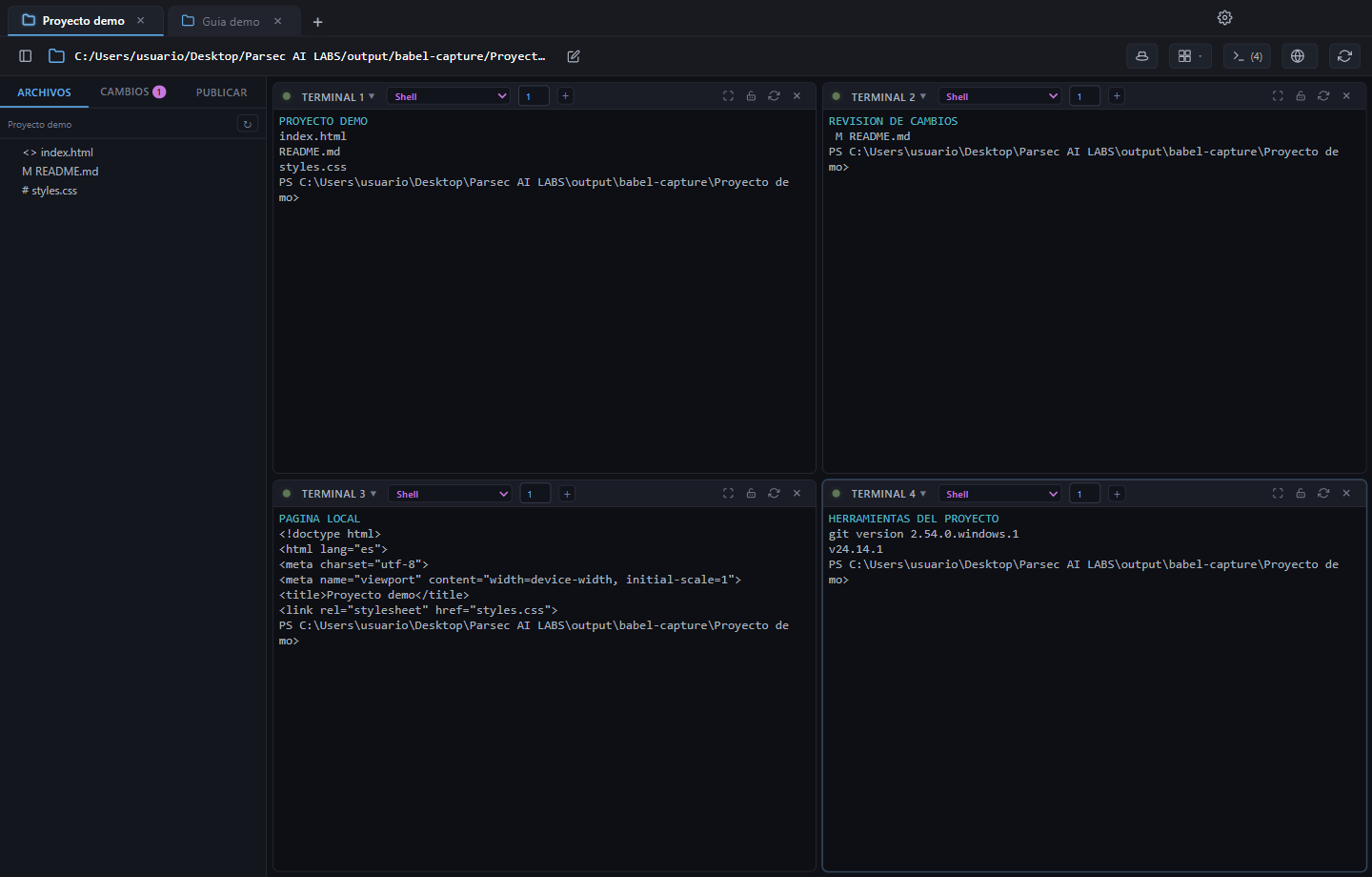
The top tabs separate projects. Each panel has its own provider selector and terminal tabs.
CLI providers
Babel Mux organizes command-line tools you configure. It does not automatically install every CLI or include subscriptions, models or AI credits.
- Install each provider following its official Windows instructions.
- Sign into the provider with your account. Its prices, limits and permissions are separate from Babel.
- Check that its command works in a Windows terminal. After installing it, refresh detection or reopen Babel as described below.
- The catalog may offer an installation command or a documentation link. Review a command before running it; a link does not mean the provider is installed.
- Keep API keys out of agent instructions and repository files.
A shell panel helps check the environment without an AI session. Credentials managed by a CLI belong to that CLI and do not automatically configure Babel’s supervisor.
Add a provider from PowerShell
- Copy the PowerShell installation command from the provider’s official website. Paste and run it in Windows PowerShell or in a Babel Shell panel. Wait for the download and installation to finish.
- Refresh Babel using the circular control beside Localhost, or close and reopen Babel. In this release, that control is labeled “Restart this project’s terminals” and restarts their processes: save your work and stop important tasks before using it. Reopening Babel also picks up
PATHchanges. - Open the panel’s provider dropdown. Recognized catalog CLIs appear when Babel detects their installed command. Select the new provider and complete its sign-in if prompted.
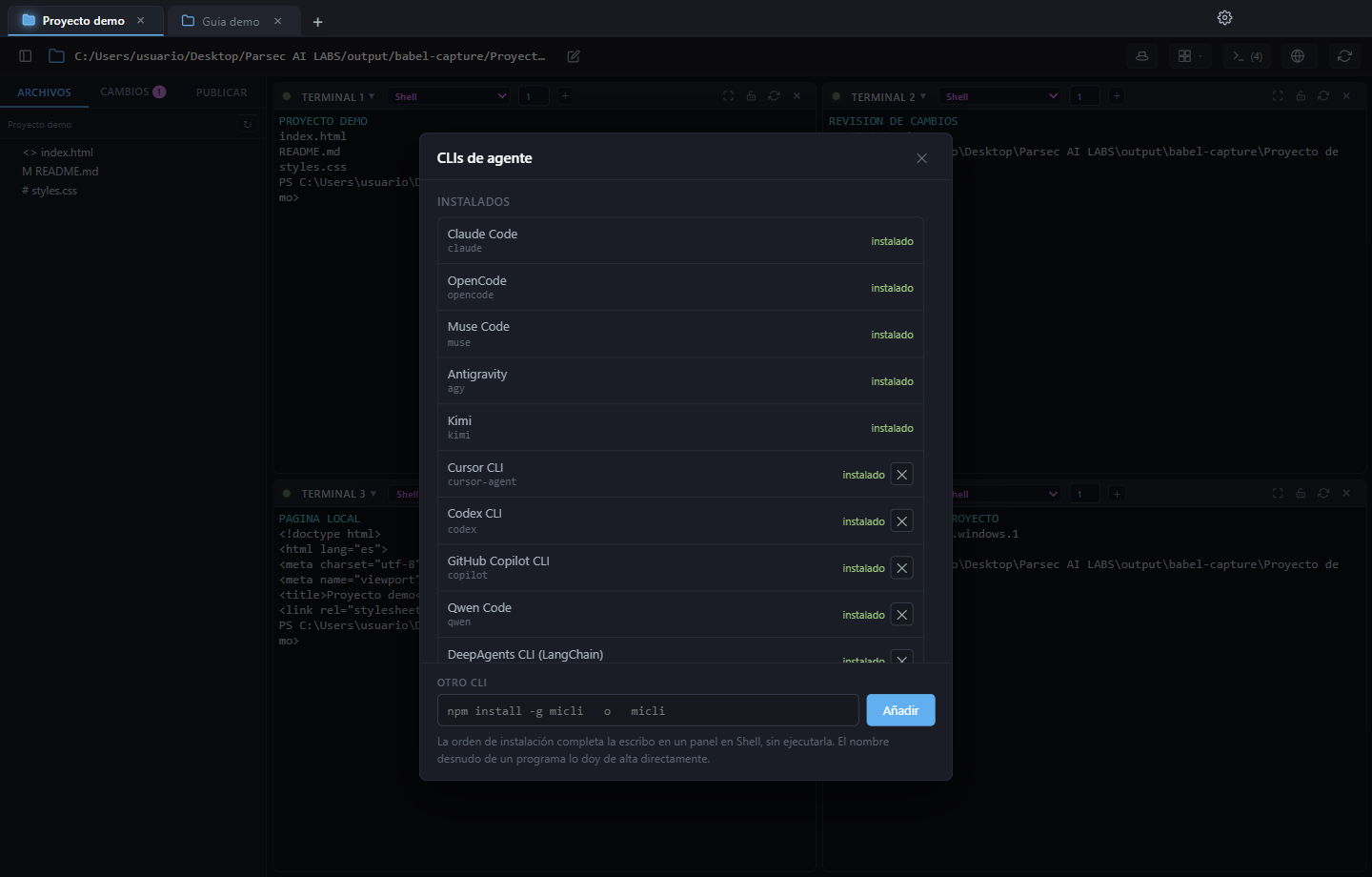
The catalog separates installed providers from tools available to install. This screenshot shows the test computer’s installed tools.
To start from Babel instead, choose “Add agent CLI…” at the bottom of the dropdown. Choose an item under To install or paste the full installation command into Other CLI. Babel types it into a Shell panel without executing it: review the command and press Enter to install.
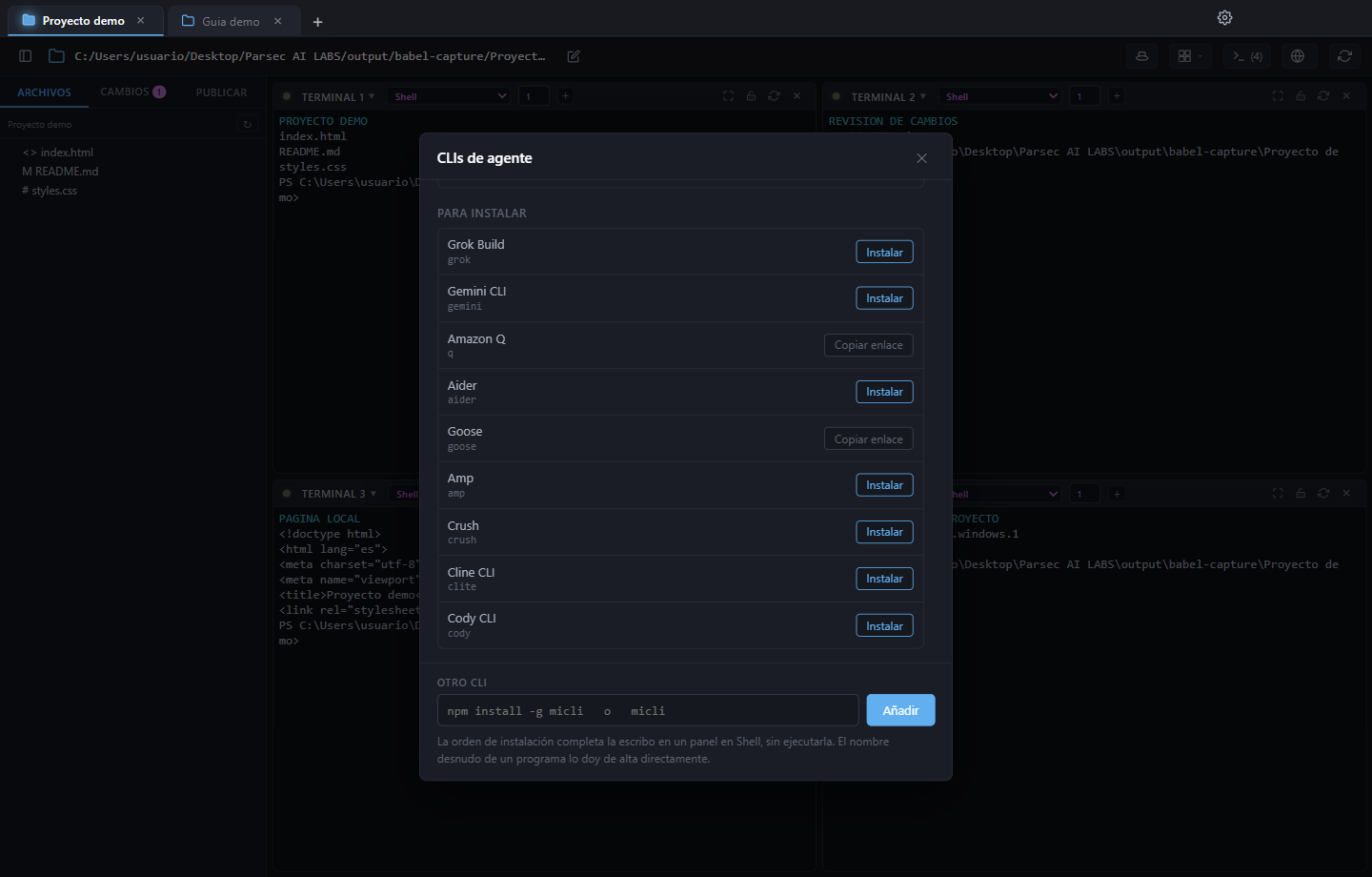
A CLI outside the catalog needs one extra step: after installing it, open Other CLI, enter the executable name used to launch it and click Add. An arbitrary download command does not tell Babel the program’s executable name. If a provider is missing, check its command in PowerShell, check PATH and reopen Babel.
Panels and layouts
Each project can contain several panels. Layouts display one, two or four terminals at a time. Use one for long output, two for comparison or four to follow several tasks.
Select a panel before typing. Closing or restarting a terminal affects its process; selecting a layout changes what is visible. When a panel is granted to an agent feature, review its permission before using its keyboard again.
Two panels sharing a folder are not isolated: both may edit the same files. Save a recovery point in git and divide work by files. Turn-taking mechanisms do not guarantee coordination for every external CLI.
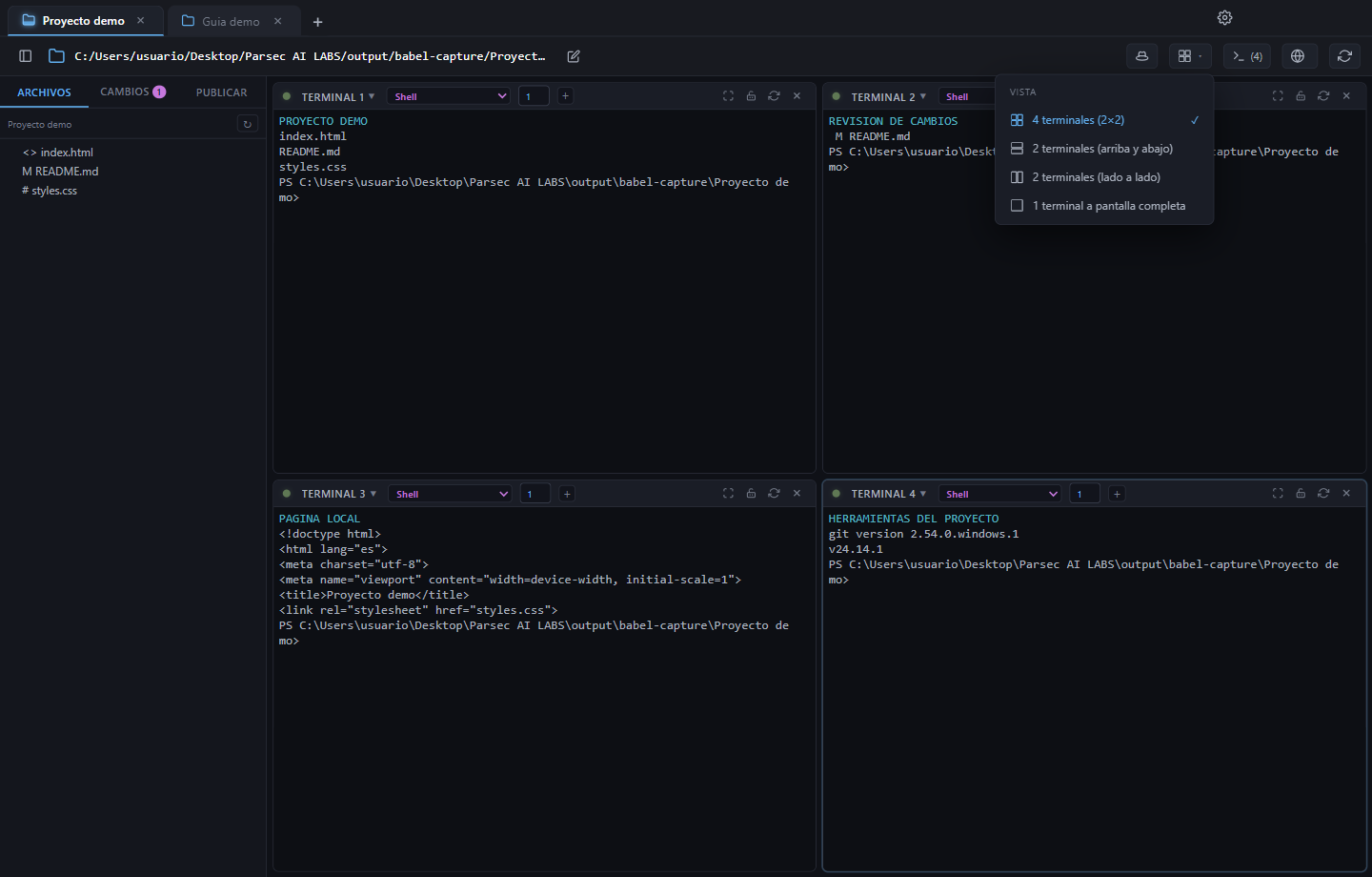
The View button changes the active project’s layout.
Files and changes
Open the explorer using the top toolbar button. Browse the project under Files; under Changes, select a modified file to review its differences. The screenshots use a sample edit to README.md.
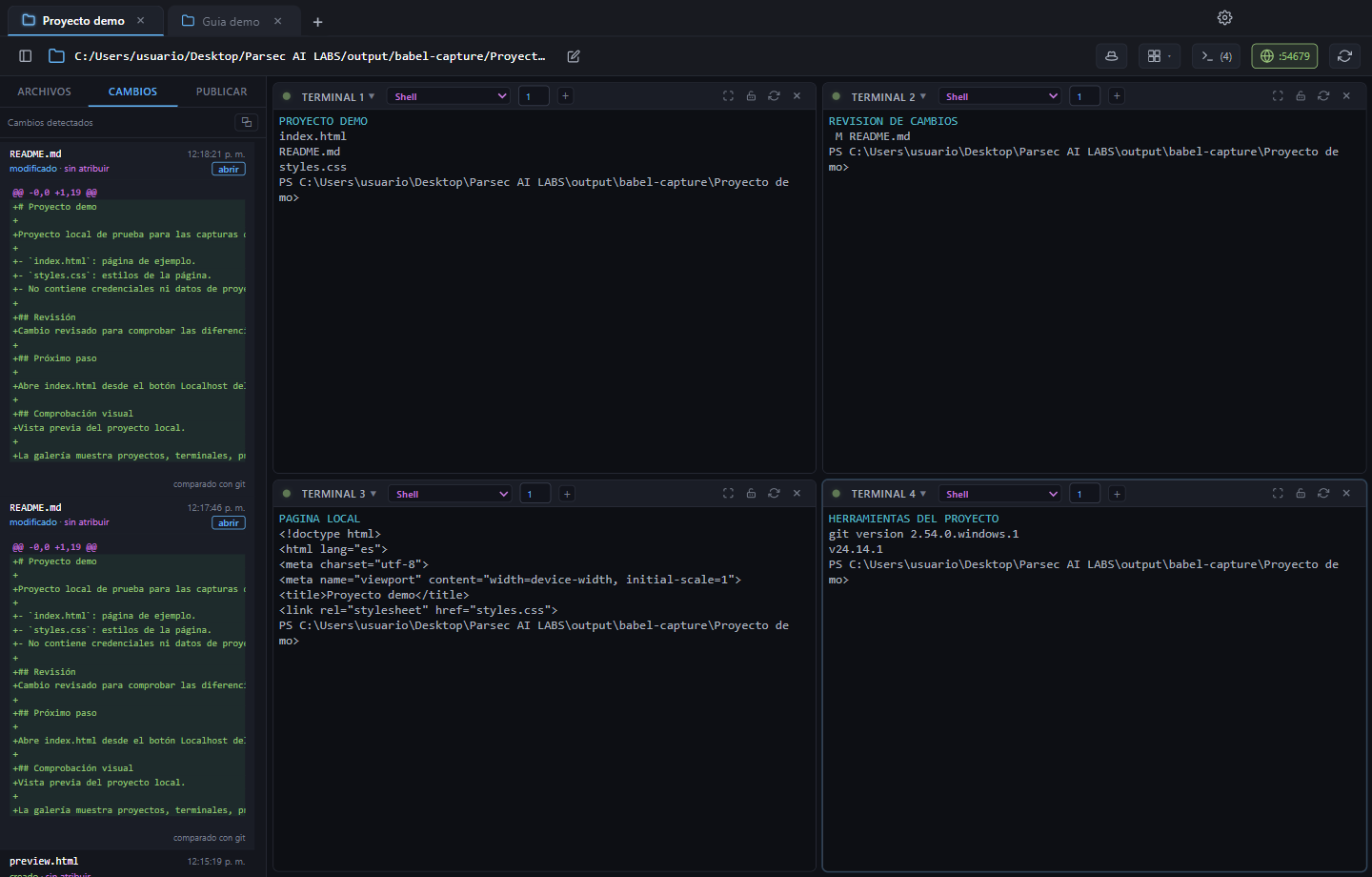
Review differences before committing or publishing your work.
Localhost
- Start your project’s development server in a terminal using that project’s command. Babel can also start a detected development script when you click Localhost; inspect the terminal it opens to check its output.
- Wait until it reports a localhost address and is ready.
- Select the detected address in the localhost view. With several servers, check the project and port.
- If the page does not load, inspect the terminal output and try the same address in your computer’s browser.
The development server must remain running. Closing its terminal may stop the page from responding. Viewing an app on localhost does not publish it on the Internet; avoid exposing servers with private data.
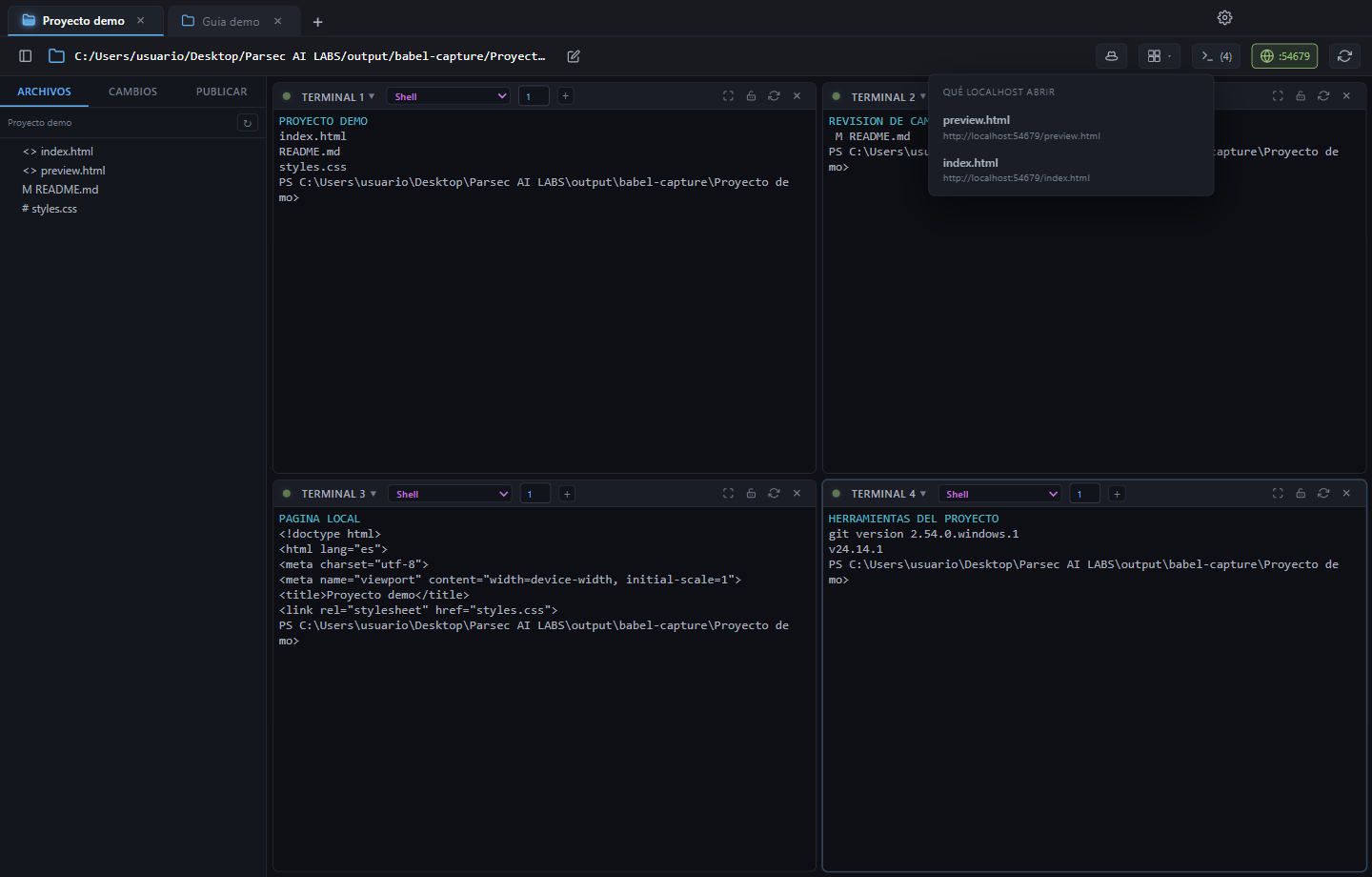
The menu lets you choose what to open. For static HTML, Babel also offers HTML files in the project folder; this screenshot shows index.html without an external development server.
Closing and recovery
Babel saves workspace organization and output to disk to help recovery. A saved session does not keep a process alive after closing the app, restarting Windows or a crash.
Stop important tasks cleanly and save your files before closing. On reopening, check the tabs and restart the CLIs or servers you need. Use the provider’s conversation resume feature if it offers one.
Terminal output and history are not a project backup. Before deleting Babel data, keep a copy and check that no other instance is using it.
Security and data
- The app and projects run on your computer. Configured CLI or API providers may send code and instructions to their services.
- The session mirror saves state and output to disk. Treat those records as sensitive and review them before sharing.
- Secret filters help reduce exposure but cannot guarantee detection of every private value.
- Agents and terminals run with your user’s permissions. Guardrails are not a virtual machine or system sandbox.
- Review changes and commands that modify files, deploy services or publish data.
The core multiplexer is free under a proprietary license. Paid agent services and features have separate terms. Read the license agreement and legal notices.
Troubleshooting
| Symptom | What to check |
|---|---|
| A provider is missing or does not start | Finish installation in PowerShell, check its command in PATH and reopen Babel; for a CLI outside the catalog, add its executable under Other CLI. If it appears but will not start, check authentication |
| A panel reports missing credentials | The corresponding provider’s configuration; do not share the secret value |
| Localhost is unreachable | Server still running, correct address and port, errors in its terminal |
| A task stopped after closing | Restart the process; workspace recovery does not restore terminated processes |
| Chat displays “Coming soon” | Expected in this download without Agentic Babel |
| Remote access offers no connection | The remote PWA is disabled in this release |
| Downloaded checksum does not match | Do not run the file; download it again from the official page and compare |
Version 1.0.0 limitations
| Feature | Download status |
|---|---|
| Multiplexer and local panels | Included |
| Installer and portable | Windows x64, unsigned |
| Agent chat | Coming soon; Agentic Babel is not included |
| Remote PWA | Disabled, including when old preferences enable it |
| macOS / Linux | Not verified for this release |
| Automatic updates | Not configured; download a new release when available |
| Models and CLI subscriptions | Configured and purchased separately |
Documentation download and legal notices
Download ES/EN guides and legal notices (.zip). The archive includes this guide in English and Spanish, all six screenshots, the license agreement and legal notices; it contains no source code.